Setup guide
Set up Scoreboard.
Six steps, then you're on the board.
1. Get the app
Get Scoreboard on the App Store. Free. iPhone only, iOS 16.4 or later.
Got an invite link or QR code from your group? Open it first, then tap the App Store badge on that page. Your invite opens after you sign up. If iPhone asks to paste from Safari, tap Allow Paste.
2. Create your account
Tap Create account: name, email, password and birth year. You need to be 13 or older.
3. Connect Screen Time
Tap Continue, then allow Screen Time access when iPhone asks.
Allowing it also turns on Apple's adult website filter on this phone.
4. Pick your categories
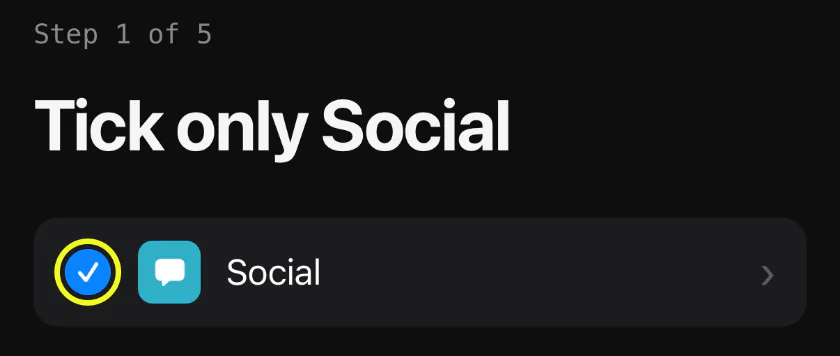
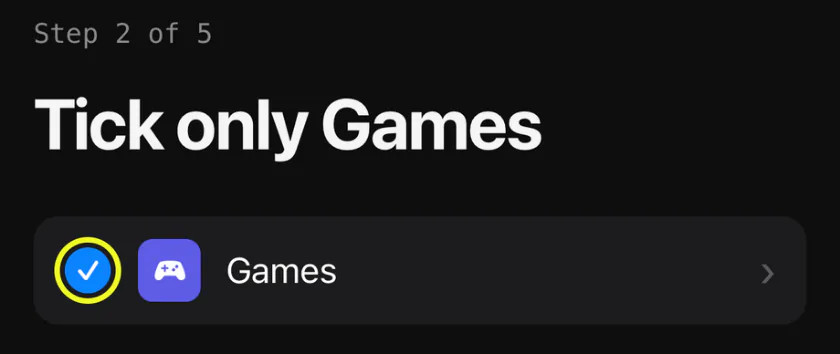
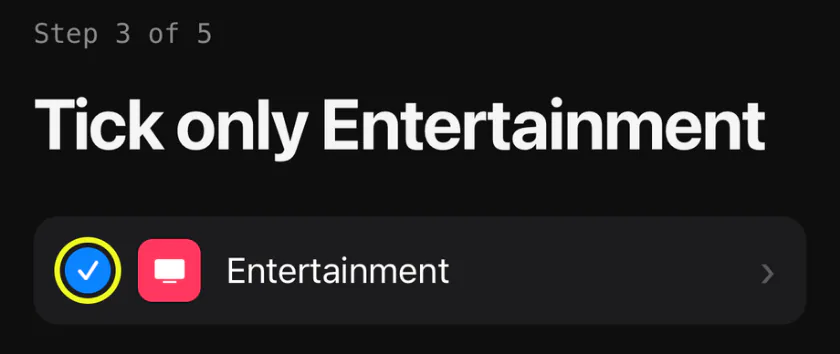
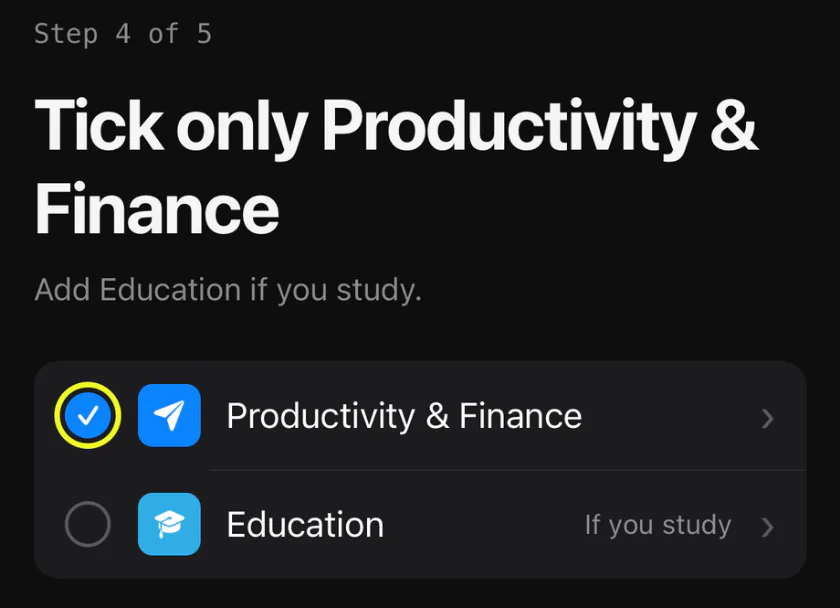
Five steps. In each one, tap Connect, tick only what the step says, then tap the yellow check.
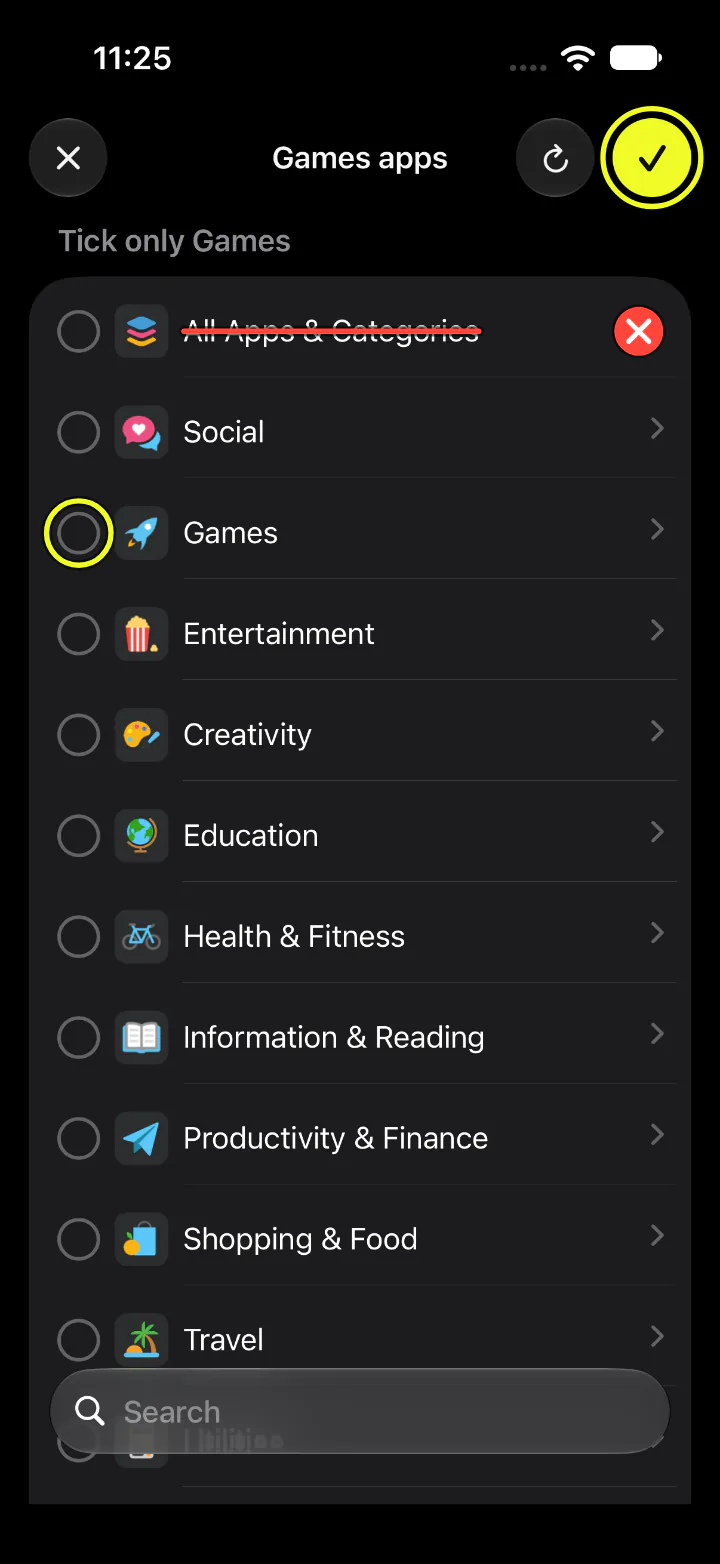
Never tick All Apps & Categories.
It ticks every category at once.
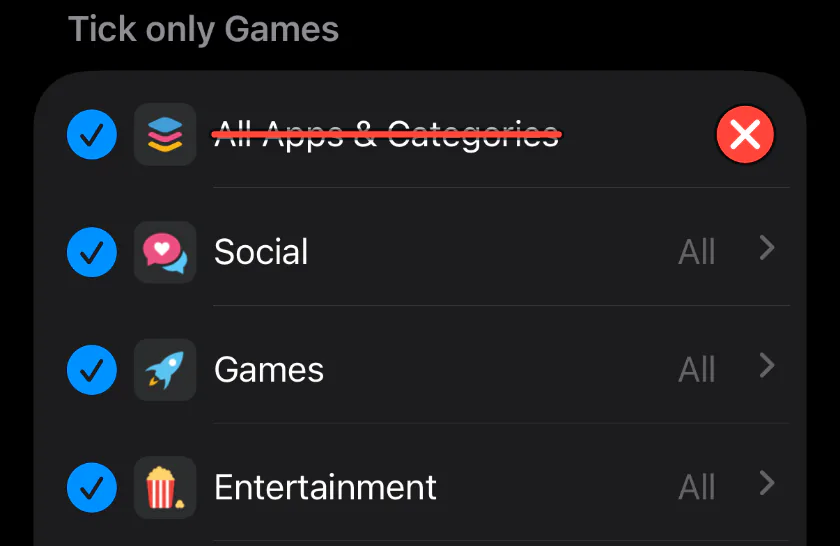
Scoreboard won't save that pick, or a category you already used in another step. It tells you what to do instead.
Step 1: Social
Step 2: Games
Step 3: Entertainment
Step 4: Productivity
Step 5: Neutral
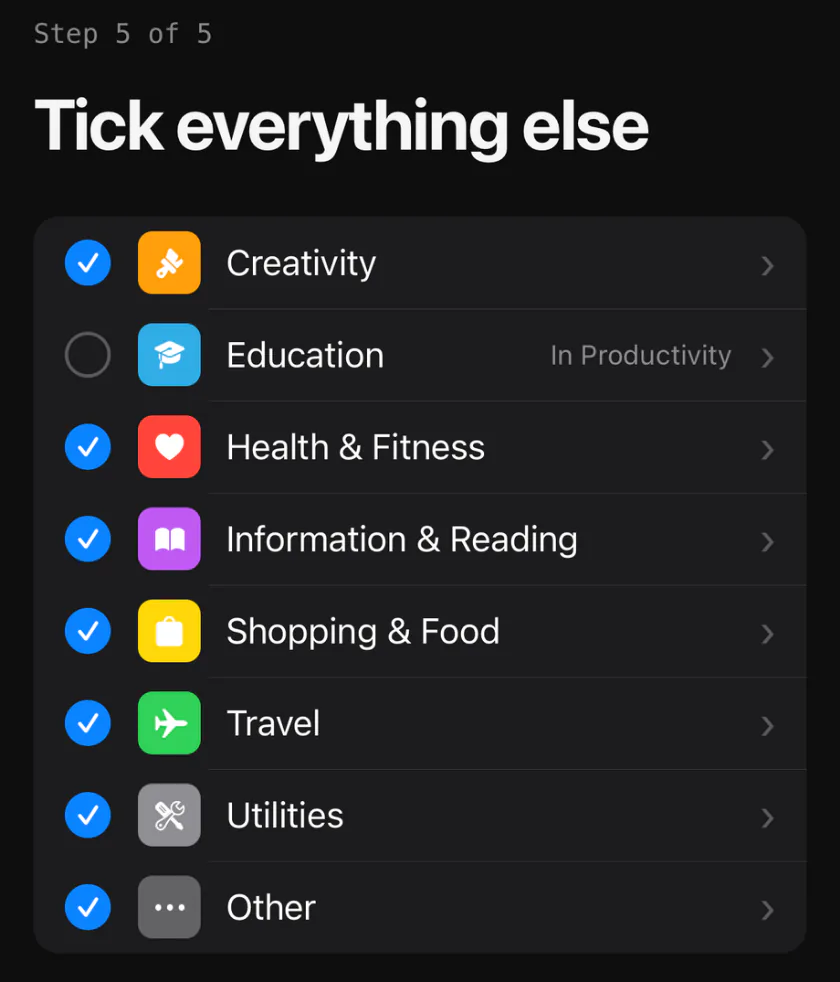
Leave out Social, Games, Entertainment and Productivity & Finance.
Added Education in step 4? Leave it out here. Didn't add it? Tick it here.
5. Picked the wrong thing?
Categories lock once they're connected, so scores stay fair.
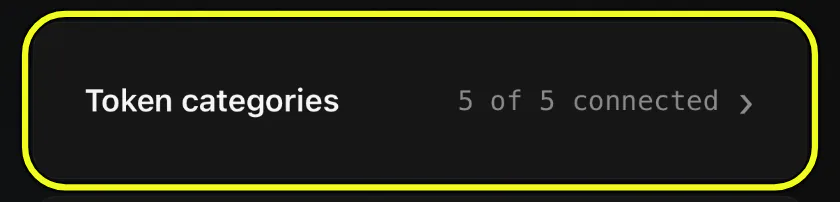
Go to Profile, then Token categories. Tap Request a reset, say what went wrong, and tap Send request. We'll include a check of your picks: how many apps each one holds, never which.
We'll unlock your categories for 24 hours and let you know. Then tap a category to pick again. Or email help@nix.management.
6. Join your group
Scan your group's QR code with the iPhone Camera, or open the invite link. Scoreboard opens on your group's board.
Link won't open? In Scoreboard, go to the Scoreboard tab, tap +, then Join with a link or code, and paste it.
Your group sees your score and how it splits by category; never which apps, never what you did in them, never anything on your screen.
Find out where you'd rank.

Free on the App Store · iPhone, iOS 16.4+ · No ads, nothing to buy